The ZFilePackager application is a standalone application.
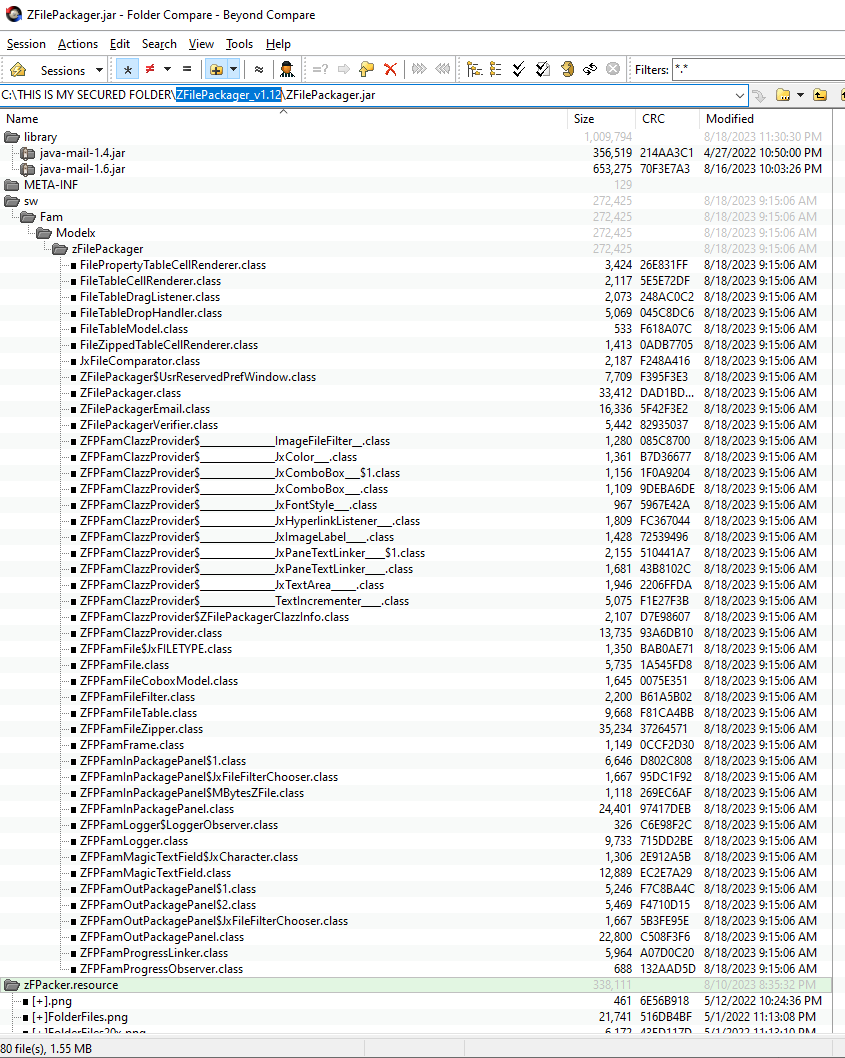
You can double click on the filename 'ZFilePackager.jar' to run. If the application cannot able to open and run,
you may need to install Java Runtime Environment [JRE] into your system in order to run this Java application.
You can click here to download and install Java JRE (Java Runtime Environment).
How to create Windows Desktop icon & Windows Shortcut?
Assumed that you download ZFilePackager_v1.12.zip and extracted into 'C:\W10-SECURED-FOLDER\ZFilePackager_v1.12'.
You will have files 'ZFilePackager_v1.12.jar', 'ZipLockIcon96x.ico' files.
Create Windows Desktop Shortcut by right-click 'ZFilePackager_v1.12.jar' and select 'Send_to->_Desktop (Create_shortcut)'
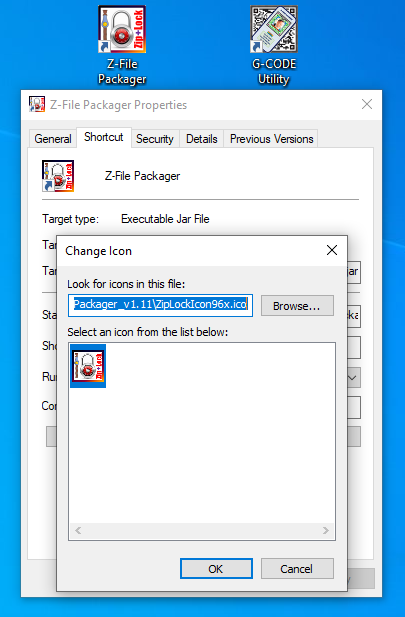
Then select and right-click 'ZFilePackager_v1.12.jar Shortcut' on the Desktop and select '_Properties->Change Icon...'; then browse for 'C:\W10-SECURED-FOLDER\ZFilePackager_v1.12\ZipLockIcon96x.ico'.
Click 'OK' button to confirm.
How to create Mac Desktop icon & Mac Shortcut?
First make sure your have Java JRE installed on your Mac PC. If not then you can click here to download and install Java JRE.
Assumed that you download ZFilePackager_v1.12.zip and extracted into 'Users/../Desktop/../ZFilePackager_v1.12'.
You will have files 'ZFilePackager_v1.12.jar', 'ZipLockIcon96x.png' files.
Create Mac Desktop Shortcut by press and hold '_Option_+_Command_' keys from Mac Keyboard and drag 'ZFilePackager_v1.12.jar' to the desktop then release keys.
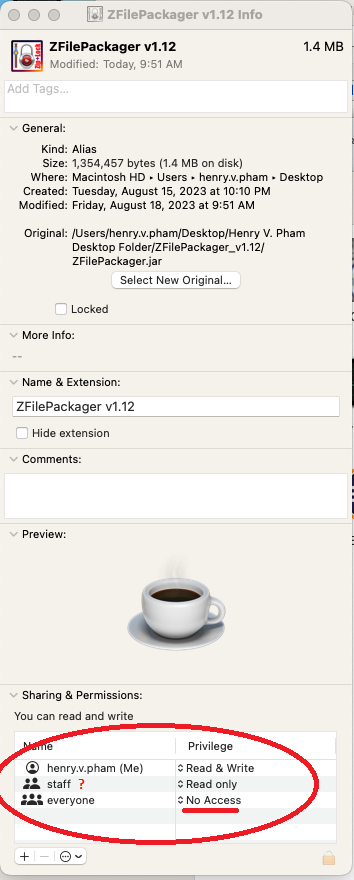
Then select and right-click 'ZFilePackager_v1.12.jar Shortcut' on the Desktop and select '_Get Info_'; then browse for 'Users/../Desktop/../ZFilePackager_v1.12/ZipLockIcon96x.png'.
Drag this image icon to the top left corner icon to replace; the new icon will show.
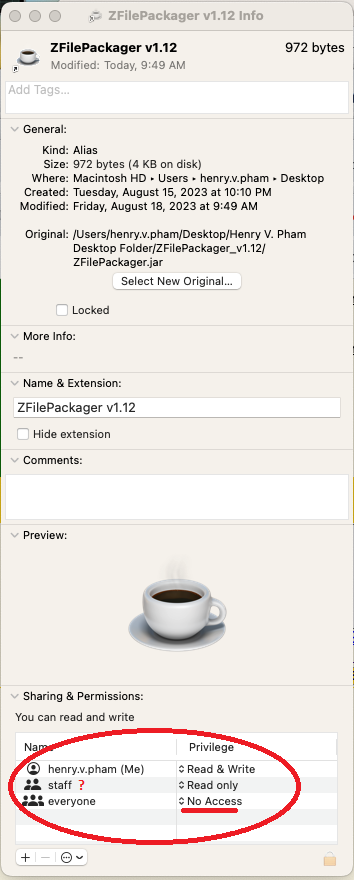
For additional secured purposes, you change the '_Sharing_ & _Permissions_' for everyone account to 'No Access'. Note: This can be used for other files/folder security purposes to protect your files in Mac PC environment.
Finally, you can open the app by double-click on the shortcut icon. If the Mac complains the ZFilePackager app is from unidentified developer, you can try press Ctrl control key and click '_Open_' and confirm to open the ZFilePackager app.
About ZFilePackager Application
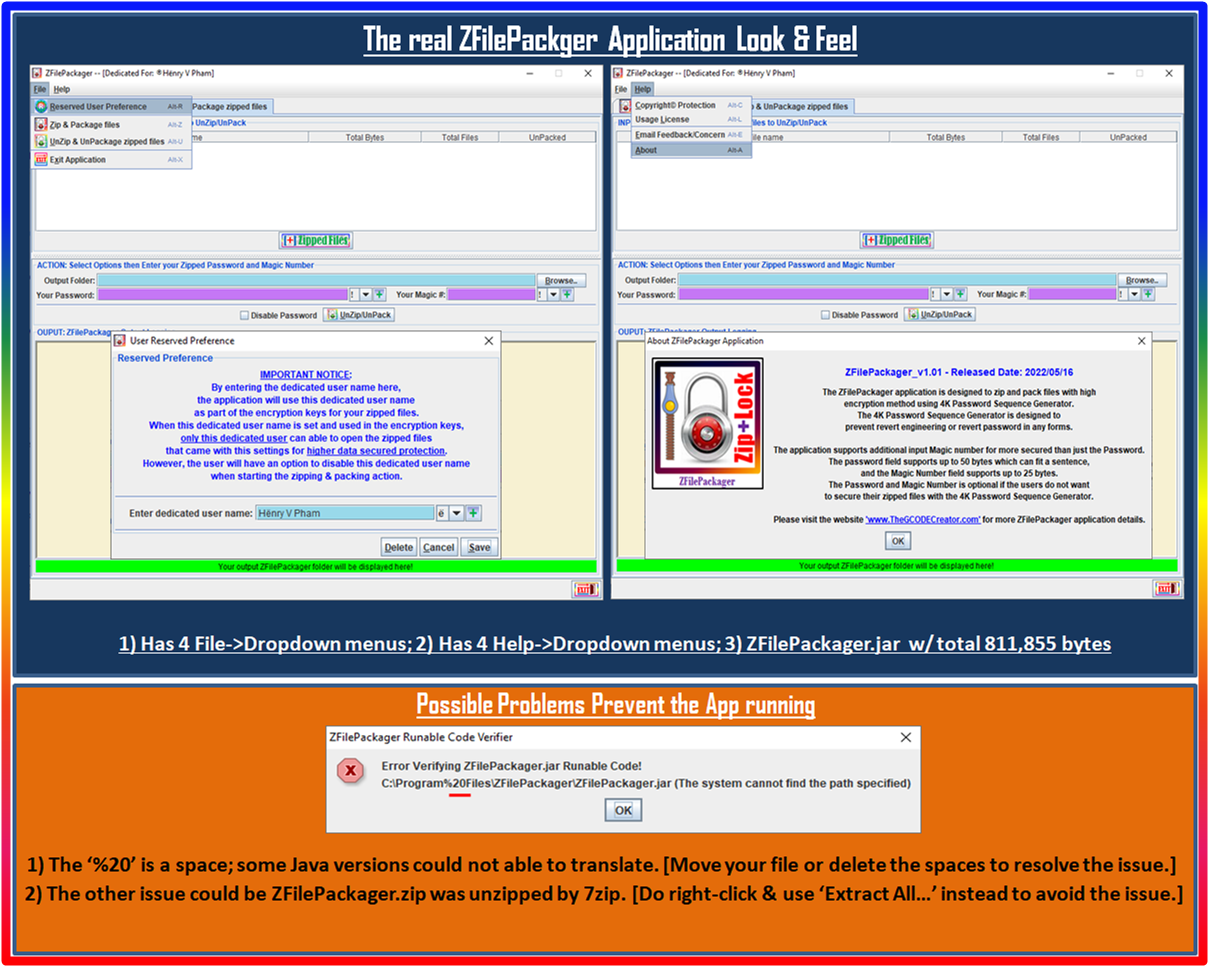
The ZFilePackager application is designed to zip and pack files with high encryption method using 4K Password Sequence Generator. The 4K Password Sequence Generator is designed to prevent revert engineering or revert password in any forms.
The application supports additional input Magic number for more secured than just the Password.
The password field supports up to 50 bytes which can fit a sentence, and the Magic Number field supports up to 25 bytes.
The Password and Magic Number is optional if the users do not want to secure their zipped files with the 4K Password Sequence Generator.
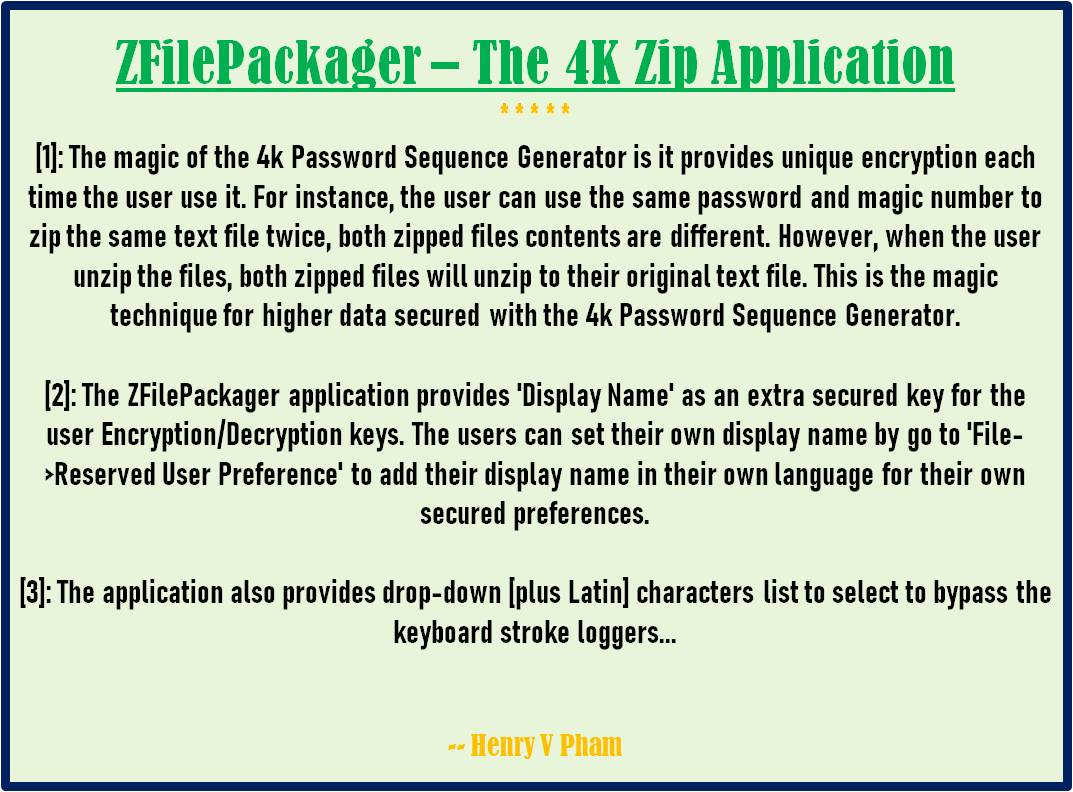
The magic of the 4K Password Sequence Generator is it provides unique encryption each time the users use it. For instance, the users can use the same password and magic number to zip the same text file twice, both zipped files with binary contents are different. However, when the users unzip the files, both zipped files will be unzipped to their original text file.
This is the magic technique for higher data secured with 4K Password Sequence Generator or the 4K Number Encryptor.
This is one of the Dynamic Protocol ideas from the Cloud OS Invention to prevent hackers from probe and decode in the middle of data transferring.
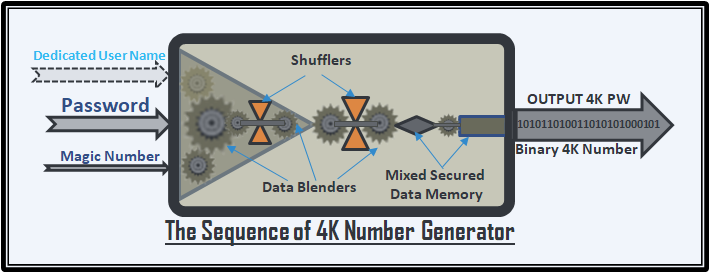
Note: The 4k Number is the number has 4k bytes/digits long. Password & Magic Number plus Additional Option 'Dedicated User' username which is case-sensitive and provided with the setting from File menu of the ZFilePackager app; all these go through the 4k Number Generator. Cloud OS will use Dedicated User as the user account name as a requirement parameter for 4k Number Encryption. The Encryption Sequence of 4k Number Generator
Note: The 4k Password will be used as the 4k Encryption Key for Data Shuffling with 4k Number Encryption. The Traditional Dual Mortars Data Shuffler
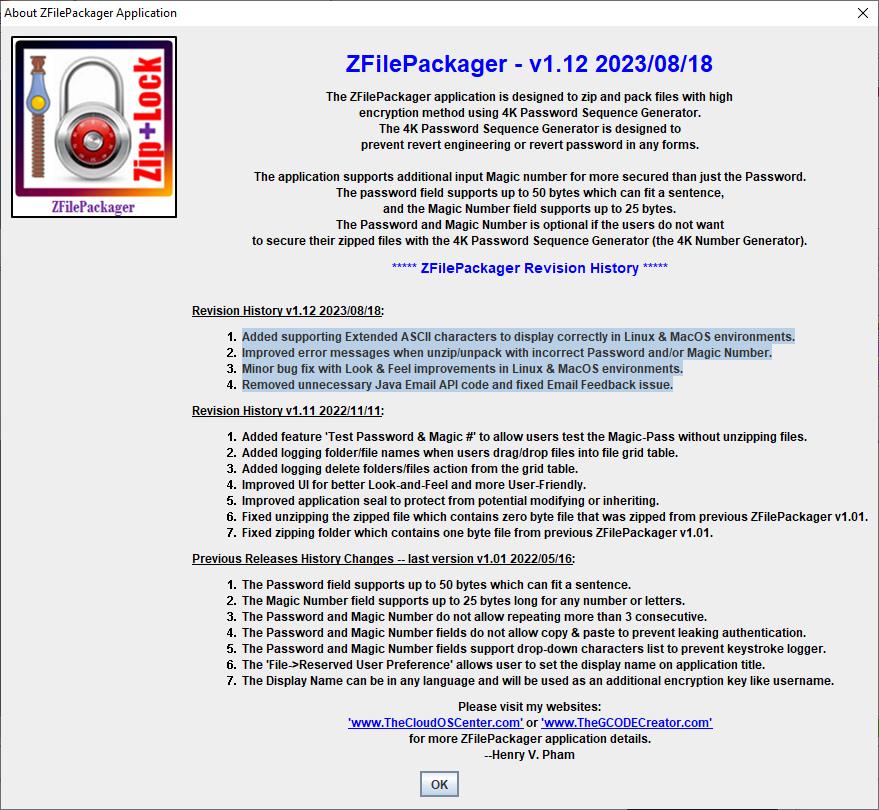
The latest version ZFilePackager_v1.12 with revision history can be viewed from '_Help->About_' application menu.
The ZFilePackager application is designed to zip and pack files with high
encryption method using 4K Password Sequence Generator.
The 4K Password Sequence Generator is designed to
prevent revert engineering or revert password in any forms.
The application supports additional input Magic number for more secured than just the Password.
The password field supports up to 50 bytes which can fit a sentence,
and the Magic Number field supports up to 25 bytes.
The Password and Magic Number is optional if the users do not want
to secure their zipped files with the 4K Password Sequence Generator (the 4K Number Generator).
***** ZFilePackager Revision History *****
Revision History v1.12 2023/08/18:
Added supporting Extended ASCII characters to display correctly in Linux & MacOS environments.
Improved error messages when unzip/unpack with incorrect Password and/or Magic Number.
Minor bug fix with Look & Feel improvements in Linux & MacOS environments.
Removed unnecessary Java Email API code and fixed Email Feedback issue.
Revision History v1.11 2022/11/11:
Added feature 'Test Password & Magic #' to allow users test the Magic-Pass without unzipping files.
Added logging folder/file names when users drag/drop files into file grid table.
Added logging delete folders/files action from the grid table.
Improved UI for better Look-and-Feel and more User-Friendly.
Improved application seal to protect from potential modifying or inheriting.
Fixed unzipping the zipped file which contains zero byte file that was zipped from previous ZFilePackager v1.01.
Fixed zipping folder which contains one byte file from previous ZFilePackager v1.01.
Previous Releases History Changes -- first version v1.01 2022/05/16:
The Password field supports up to 50 bytes which can fit a sentence.
The Magic Number field supports up to 25 bytes long for any number or letters.
The Password and Magic Number do not allow repeating more than 3 consecutive.
The Password and Magic Number fields do not allow copy & paste to prevent leaking authentication.
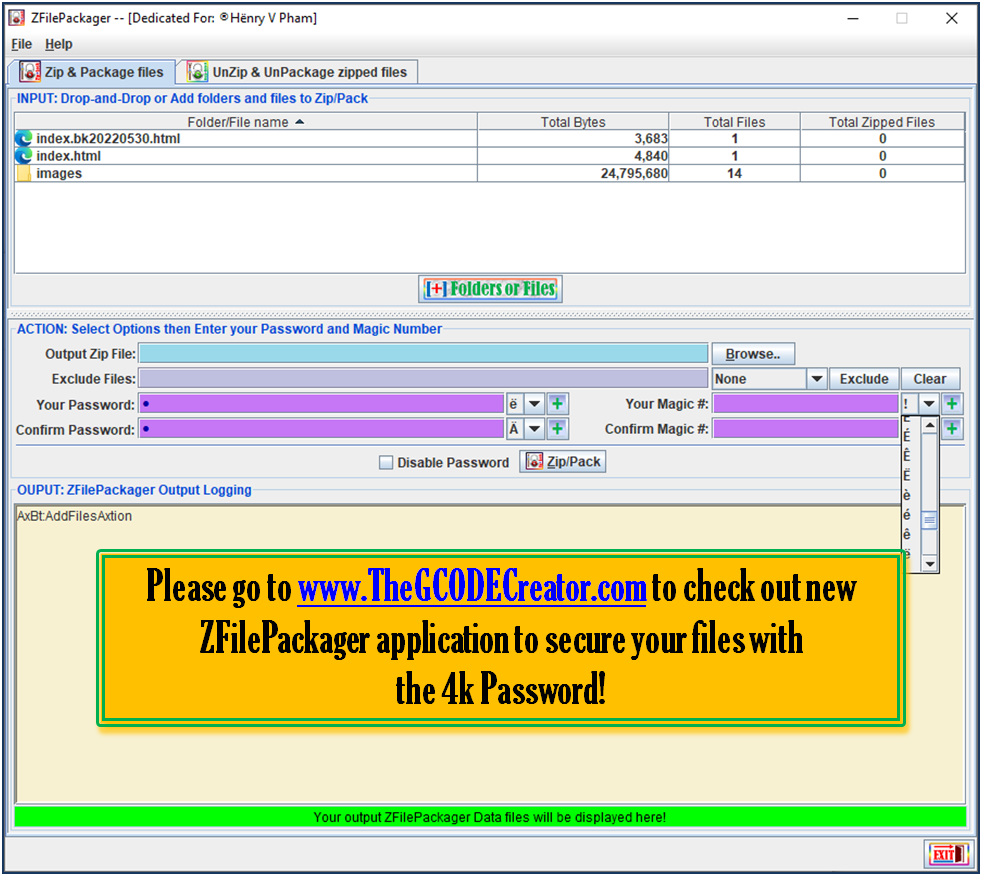
The Password and Magic Number fields support drop-down characters list to prevent keystroke logger.
The 'File->Reserved User Preference' allows user to set the display name on application title.
The Display Name can be in any language and will be used as an additional encryption key like username.
NOTICE:
The above text is rewrite from the About ZFilePackager which shows the revision history of the app which were In-App pre-compiled in the UI.
The purpose of rewriting the text here is to translate to other languages from the website based on the Language Select on top of the web page. However, Cloud OS will support In-App Auto Translation. Please read the Cloud OS Detail page for more info.
The ZFilePackager application allows the user to customize the application with
their own name in their own language or any language as the dedicated user name.
This feature "Reserved User Preference" can be found at 'File' menu.
The dedicated user name will be displayed on the top title window and
can be used as part of the Encryption/Decryption keys for your zipped files.
When this dedicated user name is set and used in the encryption keys, only this dedicated user can able to open the zipped files
that came with this settings for higher data secured protection.
However, the user will have an option to disable this dedicated user name
when starting the zipping & packing action.
The ZFilePackager supports drag & drop multiple zipped files into unzipped data grid and unzip all at once.
The ZFilePackager also supports dropdown Characters menu list next to the [+] button which allows the users to
select their favorite Latin Characters to be used as part of their Password and Magic Number;
and insert that character into any position within MagicPass for higher data secured purposes.
This feature also help the users to bypass the Keyboard Logger which can be tracked by Hackers.
The ZFilePackager app also supports user friendly which allows the users to
click green status and progress bar to open output file or to cancel the zip or unzip process.
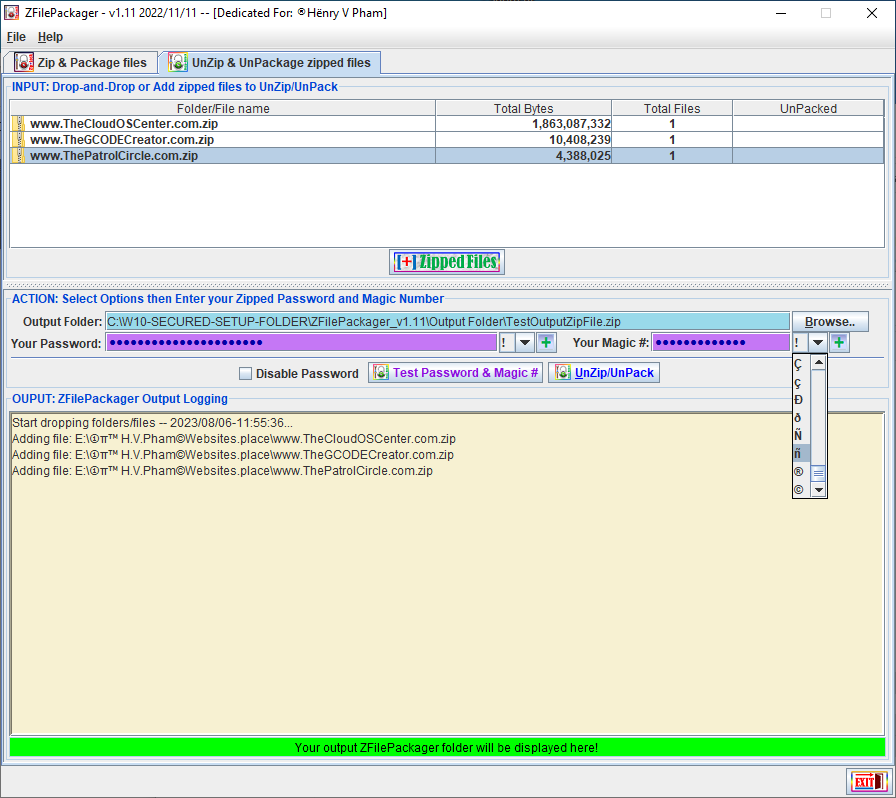
The ZFilePackager unzip panel with additional 'Test Password & Magic #' button which allows the users to
test MagicPass to ensure their MagicPass is correctly remember without unzip the content of zipped files.
Please checkout 'About' under 'Help --> About' menu for more details.
ZFilePackager Requirements
Make sure JRE is installed on your system by:
+ Open Command Console by type 'cmd' from 'Search Programs and files' in windows.
+ From Windows Command Console type 'java -version', then press 'Enter'.
+ Expected the command showing 'java version "1.6.0_45"' or higher version.
Java(TM) SE Runtime Environment (build 1.6.0_45-b06)
Java HotSpot(TM) 64-Bit Server VM (build 20.45-b01, mixed mode)
If your system already has JRE installed but canot able to run:
+ Right-Click on the ZFilePackager.jar then select 'Open With...' popup menu.
+ Select open with 'Java(TM) Platform SE binary' program and set as a default open program.
ZFilePackager Main UI
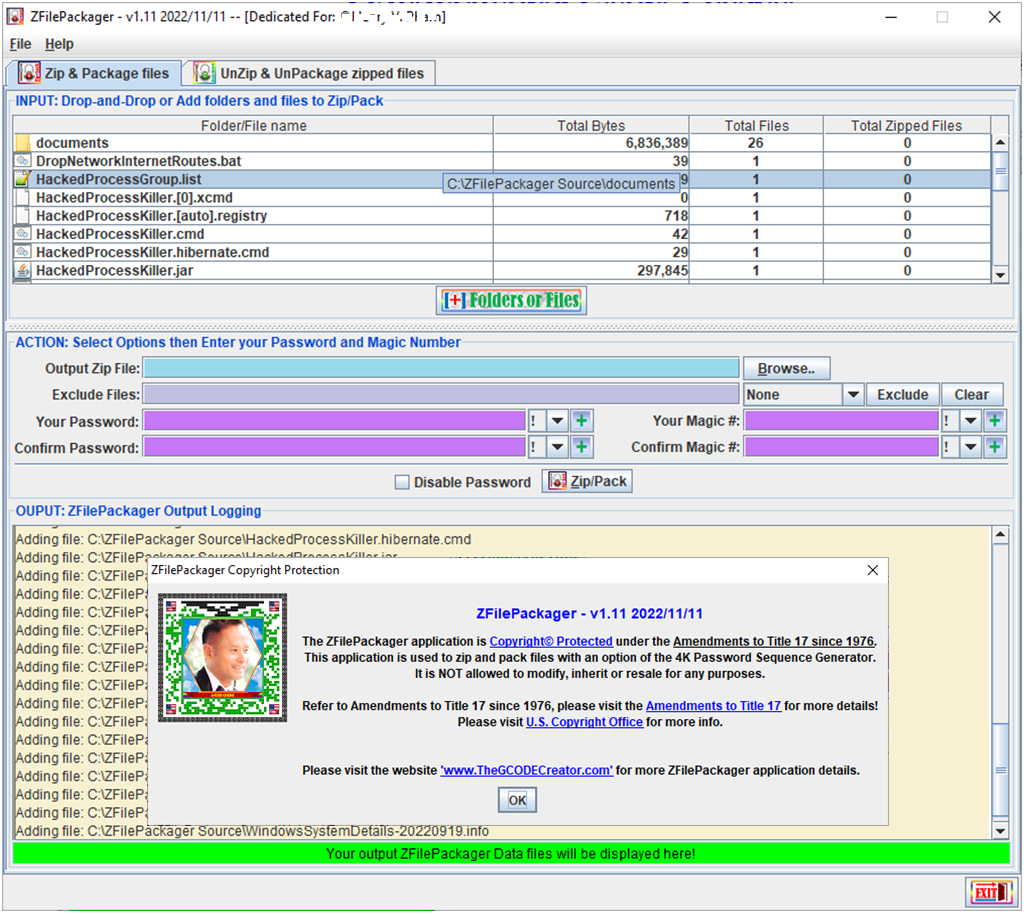
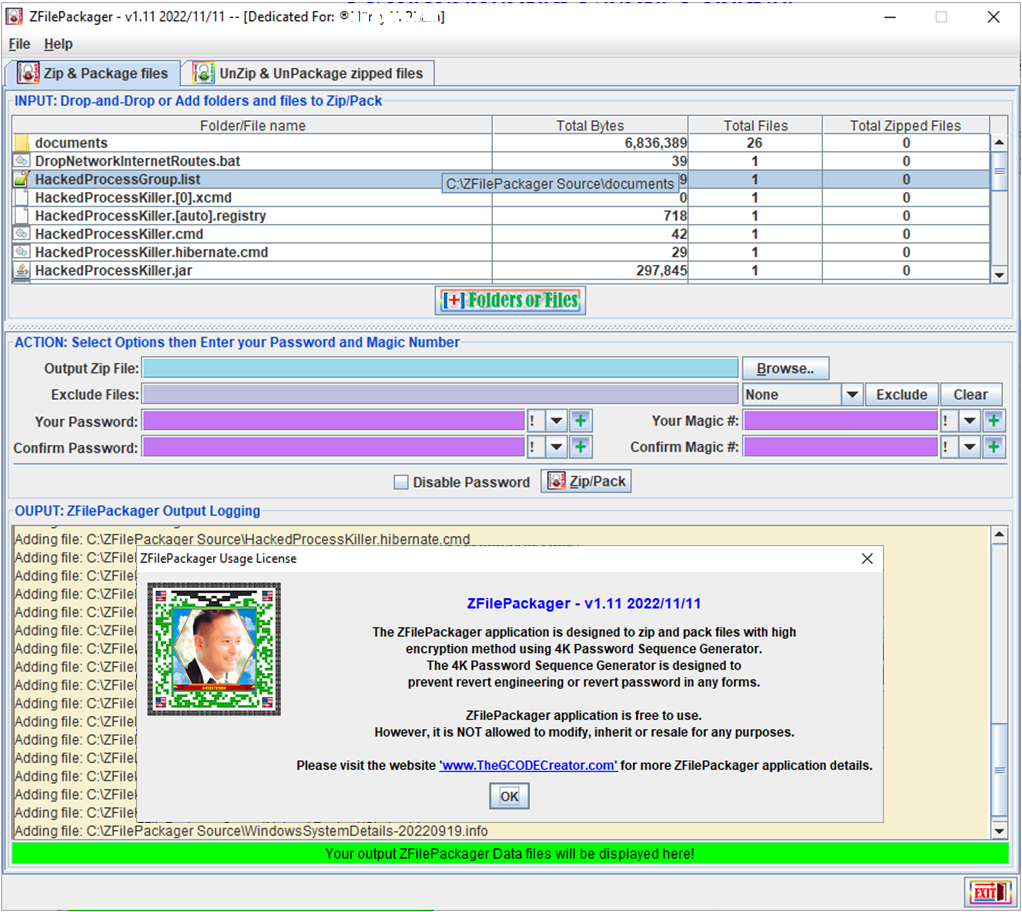
The Main UI of ZFilePackager Application
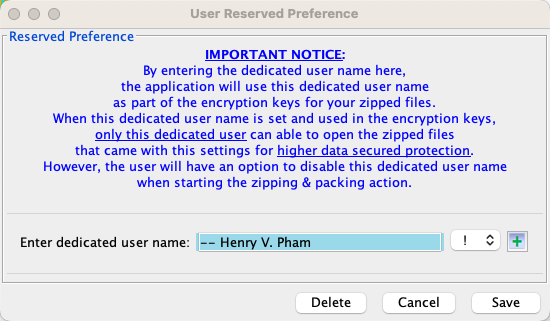
The Dedicated User Name Setting Panel
IMPORTANT NOTICE:
By entering the dedicated user name here, the application will use this dedicated user name as part of the encryption keys for your zipped files.
When this dedicated user name is set and used in the encryption keys, only this dedicated user can able to open the zipped files
that came with this settings for higher data secured protection.
However, the user will have an option to disable this dedicated user name when starting the zipping & packing action. NOTE: The 'Dedicated User' username which is case-sensitive and
will be stored in filename 'ZFilePackager.usr' under the same folder of the app.
Make sure remember the dedicated user name to open your zipped files.
Email Address can be used for easy to remember.
NOTICE: The ZFilePackager app supports user friendly which allows the users to
click green status and progress bar to open output file or to cancel the zip or unzip process.
The green status progress 'Your output ZFilePackager folder will be displayed here!' as shown above.